
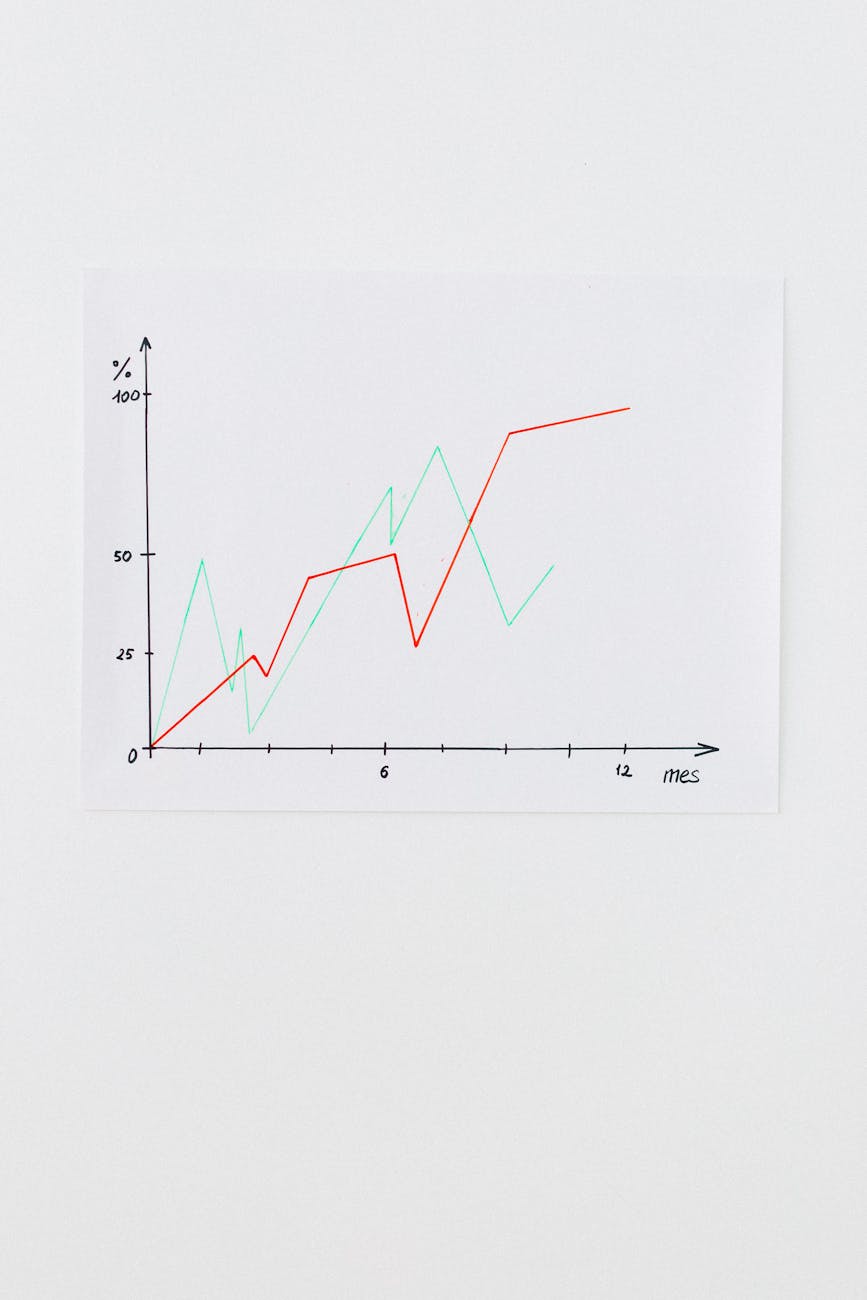
Using GA4 to spot pages that need a redesign
Introduction. In today’s competitive web landscape, a single page can be the difference between conversion and churn. Google Analytics 4 gives you powerful behavioral signals, but many marketers miss the subtle clues that show a page is underperforming. This article walks you through how to leverage GA4 reports, custom metrics, and event tracking to identify pages ripe for redesign. By the end, you’ll know exactly which data points matter, how to set up alerts, and when to bring in design resources—all without writing code.
Start with baseline performance
Before diving into GA4’s advanced features, establish a clear picture of each page’s health. Focus on core metrics that indicate engagement and friction: average session duration, bounce rate, scroll depth, and exit percentage. Use the Page report in GA4 to pull these values for every URL, then flag pages that fall below your organization’s thresholds (e.g., bounce rate > 70%, average session < 30 seconds). These baseline flags are the first indicator that a page may need attention.
- Identify outliers by comparing each page against the site average.
- Use the “Add comparison” feature to isolate pages with high exit rates on key conversion paths.
Deepen insight with event data
GA4’s event model allows you to track granular user interactions. For redesign detection, focus on events that signal engagement or abandonment: scroll depth thresholds (e.g., 50%, 90%), click‑throughs on key CTAs, and form submissions. Create a custom report that lists pages with low scroll completion rates but high impressions—this mismatch often means content is not engaging enough.
| Item | What it is | Why it matters |
|---|---|---|
| Scroll depth 90% | User reaches near the bottom of a page. | Shows content holds attention; low rates hint at poor layout. |
| CTA click rate | Clicks on primary call‑to‑action. | Low clicks may signal confusing placement or wording. |
| Form abandonment | User starts but does not submit a form. | High abandonment suggests layout or field issues. |
Create automated alerts for red‑flag pages
Set up GA4 custom metrics that trigger notifications when thresholds are breached. For example, create an alert if a page’s bounce rate rises above 80% for two consecutive days or if scroll depth drops below 50% while impressions stay high. Use the GA4 “Explore” feature to build a free‑form exploration with filters and set up scheduled email reports. This proactive monitoring ensures you catch design decay before it hurts revenue.
Validate findings with user behavior analysis
Data alone can be misleading; pair GA4 insights with visual tools like heatmaps or session recordings (e.g., Hotjar, Microsoft Clarity). When a page shows high bounce but low scroll depth, watch real sessions to confirm if users are scrolling past key content. Combine these observations to prioritize redesign work: pages that both misbehave in GA4 and show poor user engagement are the highest priority.
Common pitfalls and how to avoid them
Analytical paralysis is a frequent obstacle—too many metrics can dilute focus. Stick to the three core indicators (bounce, scroll depth, CTA clicks) for initial triage, then expand only if necessary. Another mistake is ignoring the context of traffic sources; a high bounce on a landing page from paid search might be normal if users find exactly what they need quickly. Always segment by source/medium before deciding a redesign is required.
Conclusion. GA4 equips you with precise behavioral data that, when interpreted correctly, highlights the pages most in need of a facelift. By establishing baseline metrics, drilling down into event‑level signals, automating alerts, and validating with user recordings, you create a repeatable workflow to keep your site fresh and conversion‑friendly. Start today by pulling a quick Page report, flagging outliers, and setting up a simple scroll‑depth alert—your first step toward data‑driven redesign success.
Image by: Nataliya Vaitkevich